
Want to create a realistic Mercedes driving video with AI? The key is to clearly describe the car, driving movement, camera angle, lighting and environment. If you want yourself to appear behind the wheel, first prepare a clear reference image showing you naturally seated inside the car, then animate that image using a focused image-to-video prompt.
Below are 10 copy-ready Mercedes car driving AI video editing prompts for personal driving reels, highways, city roads, mountain routes, interior POV shots, desert scenes, coastal roads and cinematic arrivals.
Each example includes a ready-to-copy prompt, recommended use case, image/reference guidance and an editing tip so you can turn the generated clip into a polished reel or short video.
Quick answer: For the most realistic AI driving video, use one car design across all scenes, keep the camera movement simple, use short clips, and carefully inspect the face, hands, wheels, road movement and vehicle shape before editing multiple clips together.
How to Create a Mercedes Driving AI Video
You can create a Mercedes-style driving video using either text-to-video or image-to-video generation.
- Text-to-video: Describe the complete scene, including the vehicle, road, weather, lighting, camera position and movement.
- Image-to-video: Start with a prepared image and mainly describe how the car, driver and camera should move.
- Video-to-video: If you already have driving footage, use a tool that supports video editing or video transformation and describe the specific visual change you want.
If you want yourself to appear as the driver, create or edit a still image first. Check your face, hands, seating position, steering wheel, seat belt and interior before generating movement.
Before You Copy a Mercedes AI Video Prompt
Although this type of content is often called “AI video editing,” turning a photograph into moving footage is technically an image-to-video generation workflow. Editing existing video footage is a separate process.
Choose the approach that matches your starting material:
- You have a photo of yourself: Prepare a cabin image showing you naturally seated in the driver’s position before animating it.
- You have a photo of the car: Use it as the visual reference for an exterior driving scene.
- You have no reference image: Use the complete text-to-video prompt.
- You already have footage: Use a compatible video-editing or video-to-video workflow.
For image-to-video generation, avoid repeating visual details that already exist in the reference image unless they are important to preserve. Instead, concentrate on movement, camera behaviour and continuity.
Suggested starting format: For Instagram Reels, YouTube Shorts or similar portrait videos, use a 9:16 aspect ratio. A short clip of around 5–8 seconds, where supported, is often easier to control than a complicated long scene.
10 Mercedes Car Driving AI Video Editing Prompts to Copy
You can use the complete prompts below for text-to-video. When using an existing reference image, shorten the prompt by removing details already clearly established in your starting image.
1. Personal Mercedes Driving Reel
Best for: Creating a realistic lifestyle reel featuring yourself behind the wheel.
Suggested image: Personal Mercedes driving interior with a right-hand-drive cabin.
Image alt text: Indian driver inside a black Mercedes-Benz sedan on a city road.
Copy-ready AI video prompt:
Create a photorealistic shot of an adult driving a black Mercedes-Benz sedan along a quiet urban road in soft morning light. Film from a fixed camera near the front passenger seat, framing the driver from the chest upward with both hands visible on the steering wheel. The driver wears a seat belt, looks ahead and makes small, natural steering adjustments. Buildings pass smoothly outside the windows. Preserve consistent facial features, clothing and cabin geometry throughout one continuous shot. Keep skin texture natural and reflections subtle.
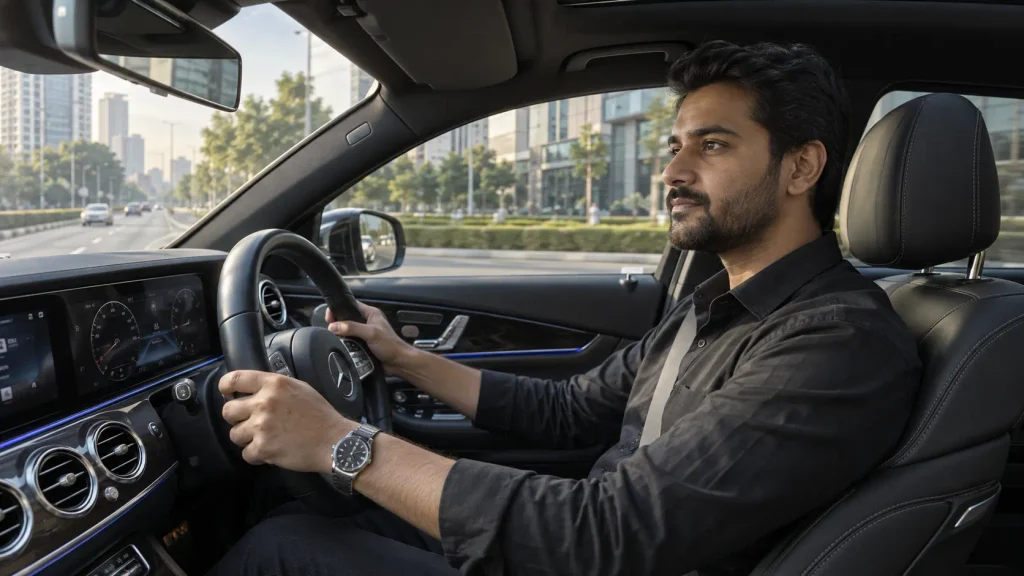
Reference setup: Use a prepared cabin image featuring your face. For an Indian driving environment, use a right-hand-drive cabin and appropriate road positioning.
Editing tip: Keep the clip long enough for the viewer to recognise the driver. Avoid immediately cutting to another angle where the face looks noticeably different.
2. Golden-Hour Highway Cruise
Best for: A cinematic exterior opening shot.
Suggested image: Silver Mercedes sedan driving on a highway at sunset.
Image alt text: Silver Mercedes-Benz sedan cruising on a highway during golden hour.
Copy-ready AI video prompt:
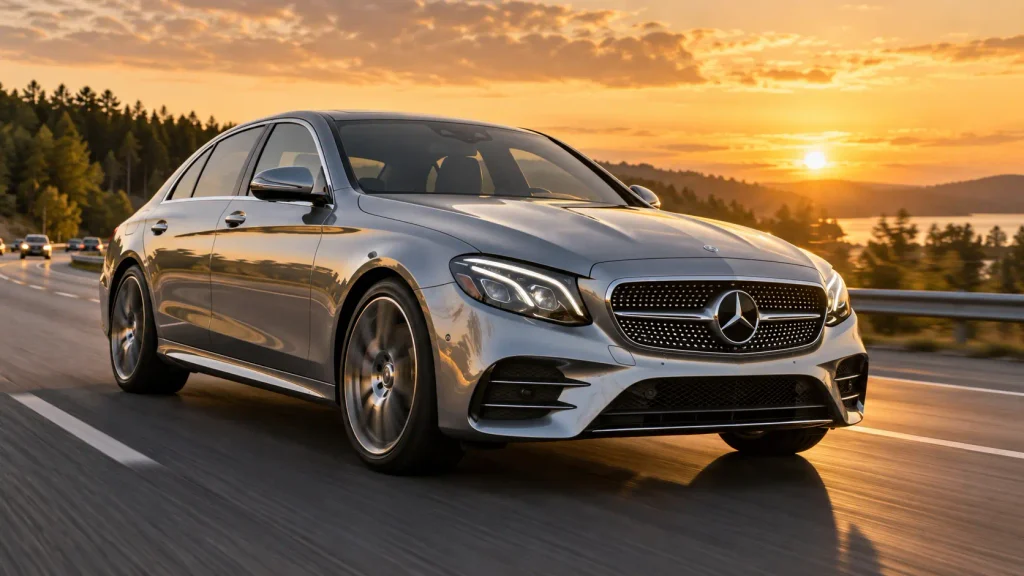
A metallic silver Mercedes-Benz sedan cruises steadily along a divided highway at sunset. A low camera tracks beside its front quarter at the same speed, keeping the car at a consistent size in the frame. Warm sunlight moves across the bonnet and side panels. The wheels rotate naturally as lane markings and roadside trees pass backward. Use restrained background motion blur, detailed paint reflections and soft amber highlights. Maintain the same body shape, wheel design and headlight geometry throughout a continuous cinematic shot.
Editing tip: Use this as an opening scene before cutting to an interior shot with similar warm lighting.
3. Rainy Night City Drive
Best for: A moody cinematic reel with wet-road reflections.
Suggested image: Dark blue Mercedes driving through a rain-soaked city at night.
Image alt text: Dark blue Mercedes-Benz sedan driving through a rainy city at night.
Copy-ready AI video prompt:
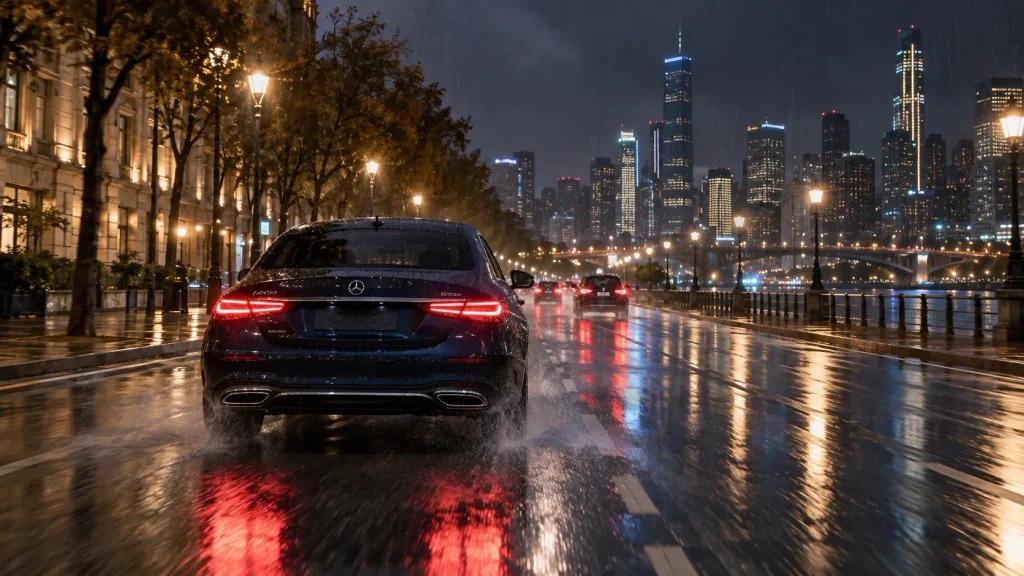
A dark blue Mercedes-Benz sedan travels slowly along a rain-damp city avenue at night. The camera follows from behind at a fixed distance, showing the rear of the car and the road ahead. Red tail lights reflect softly on the wet asphalt, while warm street lamps create pools of light along the route. Light spray rises close to the tyres. Keep the road layout stable, the car centred in its lane and the rain fine and realistic. Use balanced exposure with visible detail in the dark bodywork.
Editing tip: Add subtle rain and tyre sounds during editing. Check that reflections move naturally with the environment rather than appearing fixed to the screen.
4. Mercedes G-Class Mountain Road Drive
Best for: Adventure, travel and SUV-style videos.
Suggested image: Mercedes G-Class travelling along a mountain bend.
Image alt text: Olive Mercedes-Benz G-Class SUV driving on a mountain road.
Copy-ready AI video prompt:
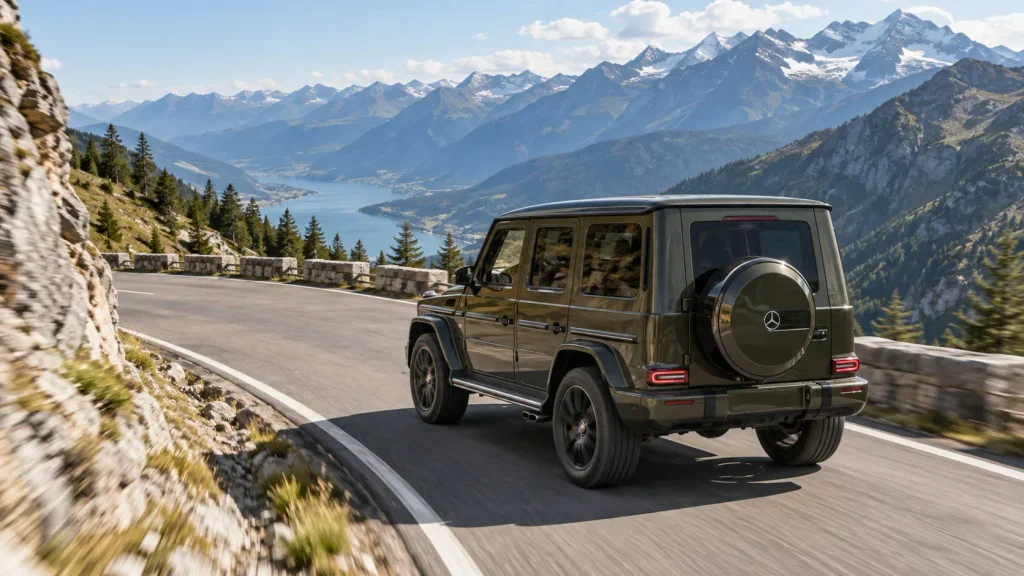
A dark olive Mercedes-Benz G-Class moves steadily around a broad mountain-road bend in clear daylight. An elevated camera follows from the rear quarter, keeping the entire vehicle visible against layered hills and a roadside barrier. The SUV follows the curve smoothly, with subtle suspension movement over the road surface. Sunlight reveals its upright body shape and textured tyres. Maintain consistent vehicle proportions, stable road edges and believable contact between every tyre and the asphalt. Capture the bend in one continuous shot.
Editing tip: Let the road bend create the visual movement. Avoid adding a complicated camera orbit at the same time.
5. Driver’s-Eye Interior POV
Best for: An immersive first-person driving reel.
Suggested image: Driver POV from a right-hand-drive luxury sedan in India.
Image alt text: Driver’s-eye view from a right-hand-drive Mercedes-Benz interior on an Indian road.
Copy-ready AI video prompt:
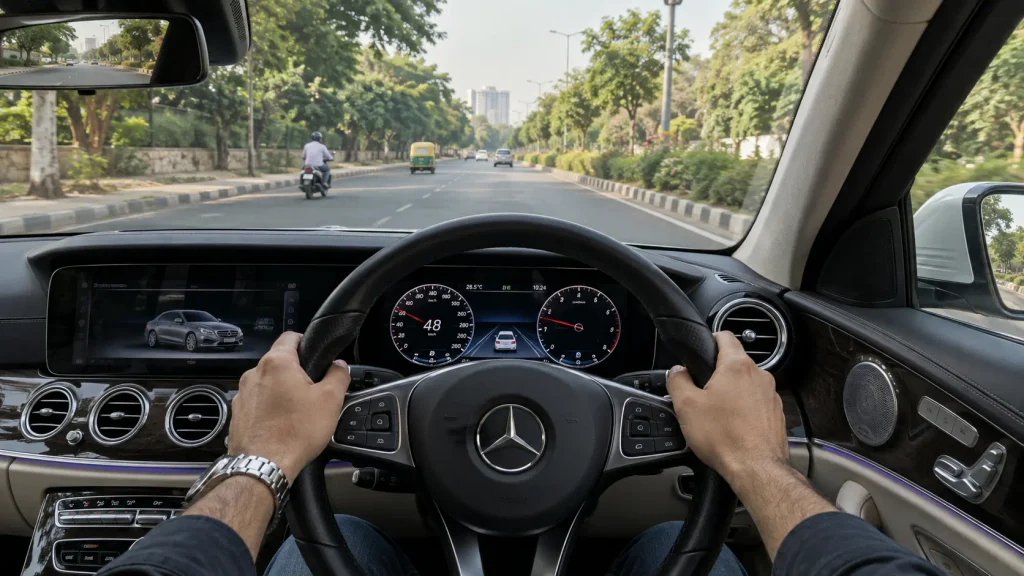
A driver’s-eye view from inside a right-hand-drive Mercedes-Benz sedan travelling along a quiet road in India. Frame the steering wheel, the driver’s naturally positioned hands and the road through the windscreen. The car stays in the left lane as roadside trees move past. Small steering corrections follow a gentle curve. Soft daylight illuminates the dashboard, and the camera remains fixed relative to the cabin. Keep the dashboard layout, hand anatomy and windscreen perspective consistent, with the road ahead clearly visible.
Editing tip: Inspect the fingers and steering wheel frame by frame. Place captions away from the hands, dashboard and road ahead.
6. Desert Highway Side-Tracking Shot
Best for: Minimalist cinematic car videos with strong landscape contrast.
Suggested image: White Mercedes sedan on an open desert highway.
Image alt text: Pearl-white Mercedes-Benz sedan driving through a desert highway.
Copy-ready AI video prompt:
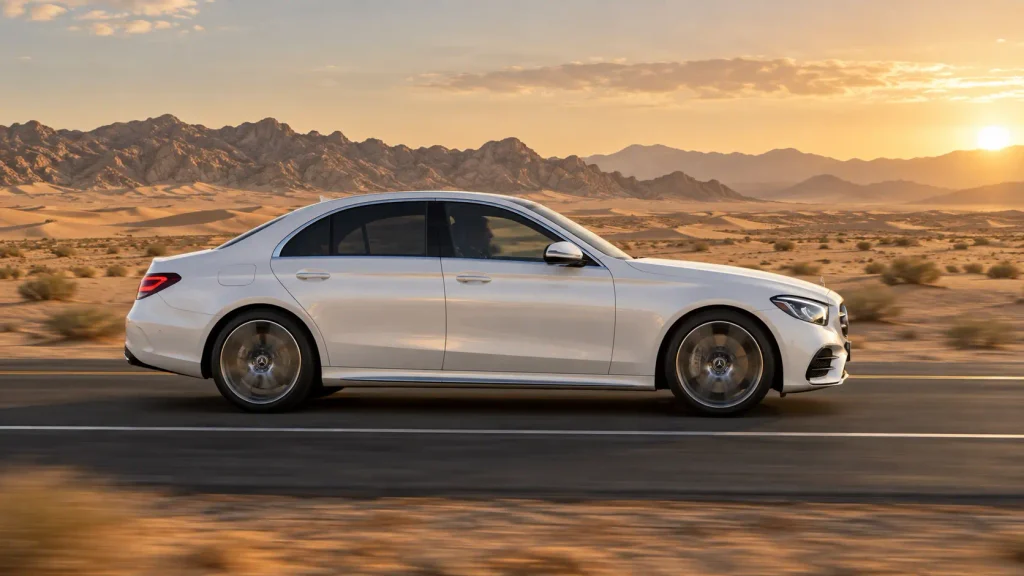
A pearl-white Mercedes-Benz sedan drives along a straight paved highway through an open desert landscape in late-afternoon light. A side-tracking camera matches its speed and holds a clean profile view. Low dunes and distant rocky ridges move slowly through the background. The wheels turn smoothly, with a consistent contact shadow beneath the tyres. Sunlight creates a narrow highlight along the doors. Keep the body panels, windows and wheel spacing unchanged throughout the shot. Use natural sand colours and clear atmospheric depth.
Editing tip: Avoid excessive brightness or contrast that could remove visible detail from the white body panels.
7. Coastal Road Aerial Follow
Best for: Scenic travel reels where the environment is as important as the vehicle.
Suggested image: Grey Mercedes on a coastal road captured from above.
Image alt text: Aerial view of a grey Mercedes-Benz sedan driving beside the sea.
Copy-ready AI video prompt:
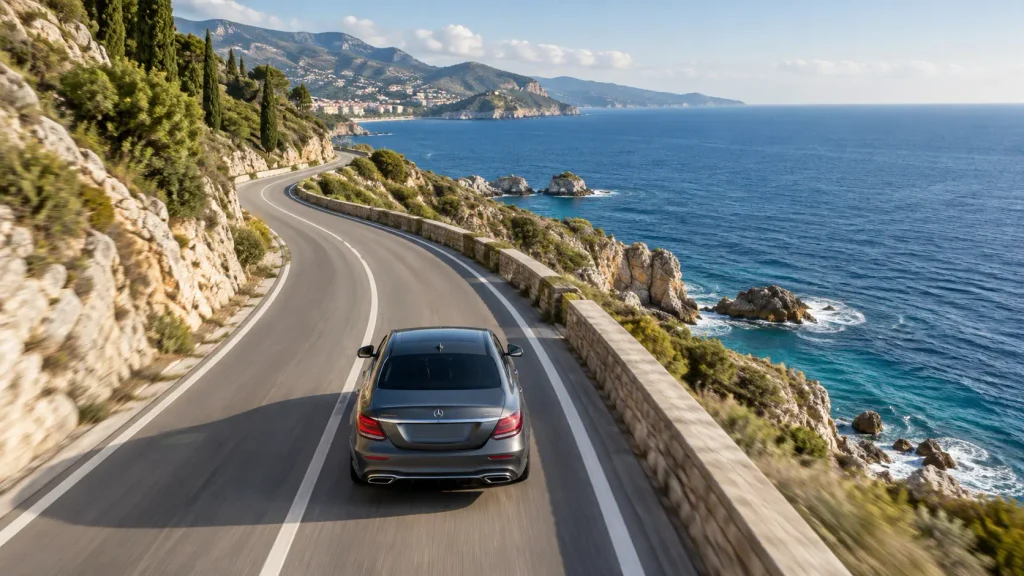
A graphite-grey Mercedes-Benz sedan follows a gently curving coastal road beside a blue sea. A high aerial camera follows behind at a steady distance, keeping the vehicle visible in the lower centre of the frame. Small waves move toward the shoreline, and sunlight produces soft reflections on the roof. The car follows the road naturally while the coastline opens into the distance. Maintain continuous road geometry, a level horizon and smooth camera movement. Use realistic daylight colours and a spacious cinematic composition.
Editing tip: Give the viewer enough time to understand the coastline. This type of wide shot can work well between closer driving scenes.
8. Tunnel-to-Daylight Driving Shot
Best for: A dramatic but natural lighting transition.
Suggested image: Black Mercedes travelling through a tunnel toward daylight.
Image alt text: Black Mercedes-Benz sedan travelling through a tunnel toward daylight.
Copy-ready AI video prompt:
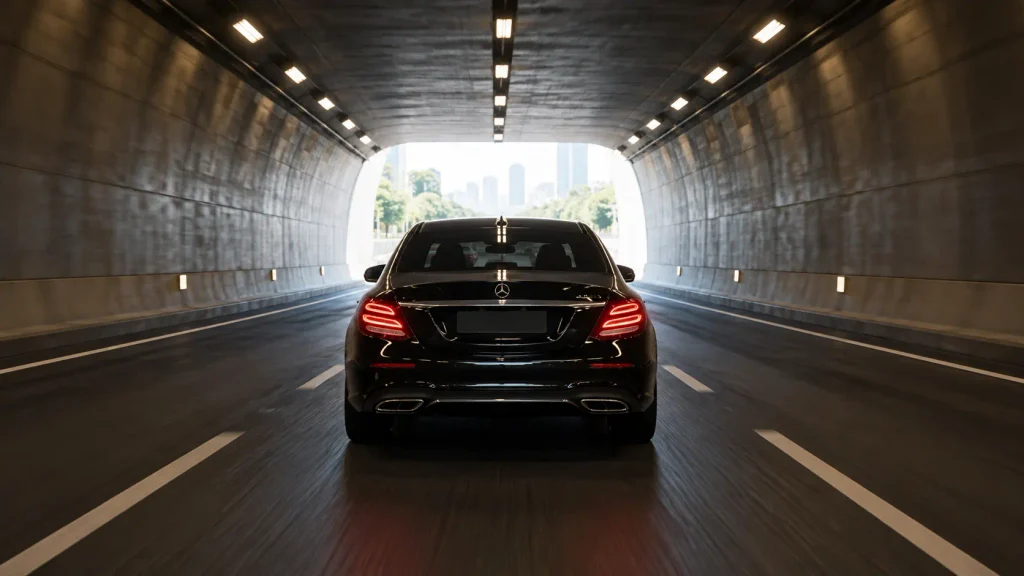
A black Mercedes-Benz sedan drives through a straight tunnel toward a bright daylight exit. The camera follows directly behind at a constant distance. Overhead tunnel lights pass rhythmically across the roof and rear window. As the car reaches the exit, exposure adjusts gradually to reveal the sunlit road beyond. Preserve the same vehicle shape, lane position and forward speed throughout. Keep the transition smooth, with visible detail inside the tunnel and outside the exit. The camera follows the car continuously into daylight.
Editing tip: Let the natural exposure change act as the transition. Avoid adding another bright flash effect over it.
9. Tree-Lined Boulevard Drive
Best for: A relaxed daytime lifestyle driving reel.
Suggested image: Burgundy Mercedes driving through a green boulevard.
Image alt text: Burgundy Mercedes-Benz sedan driving along a sunny tree-lined boulevard.
Copy-ready AI video prompt:
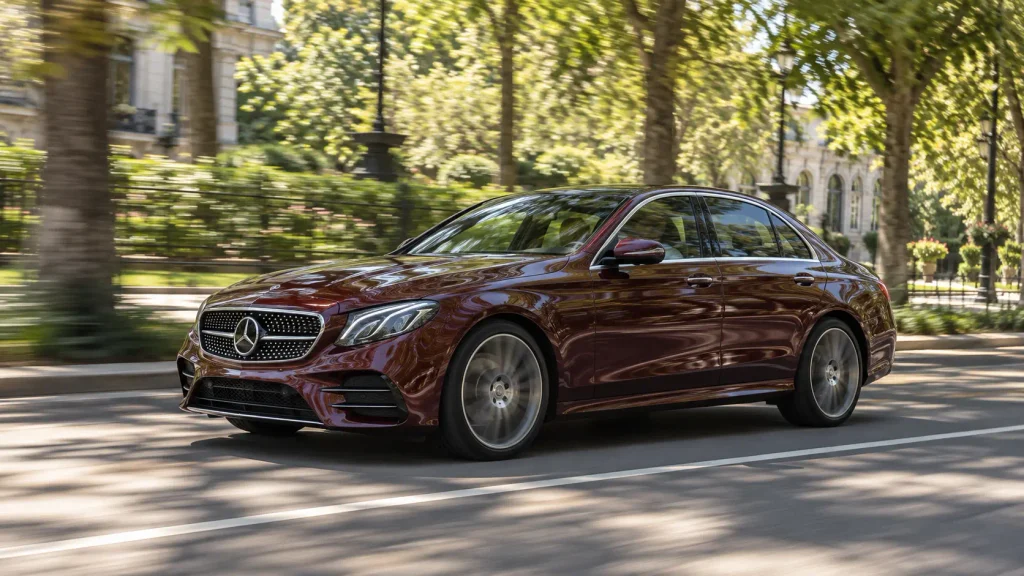
A burgundy Mercedes-Benz sedan drives at a relaxed pace along a broad, tree-lined boulevard. A roadside camera pans smoothly as the car passes from left to right, keeping the vehicle sharp while the background moves softly. Sunlight filters through leaves and casts moving patches of shade across the bonnet, windows and doors. The car stays level and follows a straight path. Preserve the wheel design, window shape and paint colour throughout the pass. Use natural greens, soft contrast and realistic everyday surroundings.
Editing tip: If the car moves left to right, try to maintain the same direction of travel in the next shot for smoother visual continuity.
10. Slow Arrival at a Modern Entrance
Best for: A closing scene for a luxury-style reel.
Suggested image: Mercedes sedan arriving at a modern building entrance.
Image alt text: Charcoal Mercedes-Benz sedan arriving at a modern luxury building entrance.
Copy-ready AI video prompt:
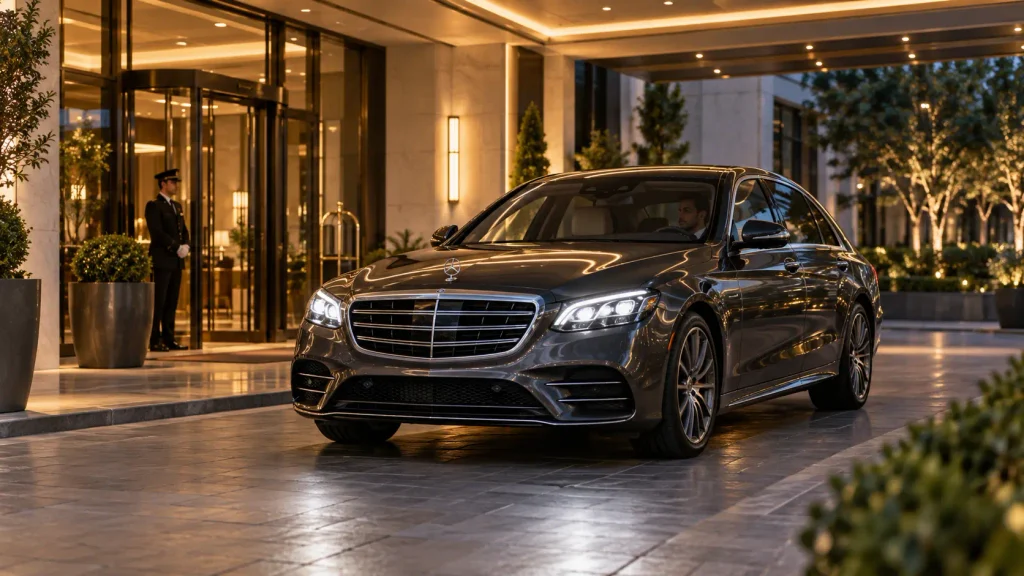
A charcoal Mercedes-Benz sedan approaches a modern covered building entrance along a clean driveway. A fixed camera at the front quarter captures the vehicle rolling slowly into position and coming to a gentle stop. The tyres gradually stop rotating, and the body settles subtly as braking ends. Warm architectural lighting reflects across the paint and glass. Keep the vehicle fully visible with consistent grille, mirror and wheel geometry. End on a composed stationary frame beneath the entrance canopy, with the driver remaining seated.
Editing tip: Hold the final stationary frame briefly so you can add a closing caption, logo or call to action during editing.
How to Turn These Prompts Into a Finished AI Video
Step 1: Choose a Reference Image That Matches the Shot
The starting image should already resemble the scene you want to animate.
A close portrait does not establish a complete driving cabin, while a parked wheel close-up is not suitable for generating an aerial coastal driving sequence.
For personal driving videos, create the seated-driver composition first. For exterior videos, check the car silhouette, mirrors, headlights, wheels and visible body panels before animation.
Step 2: Match the Prompt to Your Generation Method
For text-to-video, use the complete scene description.
For image-to-video, simplify the prompt and concentrate on movement. For example:
Short image-to-video prompt: The sedan moves steadily forward while the camera tracks alongside at matching speed. The wheels rotate naturally and roadside scenery moves backward. Maintain the same vehicle design throughout the shot.
Google DeepMind’s official Veo prompt guide identifies details such as framing, camera movement, lighting, location and action as useful parts of video prompting.
Step 3: Select the Appropriate Video Settings
Choose the duration, aspect ratio and generation mode offered by your AI video tool.
For short-form vertical content, use a 9:16 canvas where available. Keep the first generation simple: one clear driving action combined with one camera movement.
Google Flow’s official video creation instructions explain how text, frames and supported reference-based generation workflows can be used depending on the selected model and feature.
Step 4: Review the Entire Generated Clip
Do not judge the result only from the opening frame.
Watch the complete video and check whether:
- The car changes shape.
- The grille or headlights become distorted.
- The wheels slide instead of rotating.
- The driver’s face changes.
- The driver’s hands become distorted.
- The road suddenly changes direction.
- The camera unexpectedly changes angle.
- Vehicle reflections behave unnaturally.
Runway’s image-to-video prompting guide also recommends using clean input images and clear motion instructions.
Step 5: Create Multiple Short Clips Instead of One Complicated Scene
Rather than asking the AI model to create several camera angles in a single generation, create each scene separately.
For example, a simple 15-second Mercedes driving reel could use:
- First 5 seconds: Exterior highway driving shot.
- Next 5 seconds: Interior driver’s-eye POV.
- Final 5 seconds: Slow arrival at a modern entrance.
Use the same vehicle colour, body style, wheels, driver, clothing and lighting conditions where possible so the three clips feel like one continuous sequence.
How to Create an AI Mercedes Driving Video With Your Own Photo
If you want yourself to appear inside the car, the quality of the reference image becomes especially important.
- Choose a clear photograph of yourself.
- Create or edit a still image showing you naturally seated in the driver’s seat.
- Use a right-hand-drive interior if the scene is intended to represent driving in India.
- Check that both hands, the steering wheel, seat belt and seating position look natural.
- Upload the prepared image to an image-to-video generator.
- Describe only the required movement and camera behaviour.
- Generate a short test clip before attempting longer scenes.
- Review your face and hands carefully before using the clip.
A suitable motion prompt could be:
The driver looks naturally ahead while the car travels smoothly along the road. Both hands remain naturally positioned on the steering wheel with small realistic steering adjustments. Buildings and trees move past outside the windows. The camera remains fixed inside the cabin. Preserve the same face, clothing, steering wheel and interior throughout the shot.
Common Mercedes AI Driving Video Problems and Fixes
| Problem | What to Try |
|---|---|
| Driver’s face changes | Use a clearer cabin reference, maintain a consistent face angle and reduce unnecessary head movement. |
| Car looks parked while the background moves | Describe forward movement, tyre rotation and backward-moving surroundings together. |
| Wheels become distorted | Use a slightly wider camera angle, reduce movement complexity or select a shorter usable portion of the clip. |
| Body panels change shape | Use a clearer car reference and request simpler, more consistent camera motion. |
| Camera suddenly changes angle | Request one continuous camera position and remove competing instructions such as orbiting, zooming and tracking at the same time. |
| Badge or grille changes | Use a detailed reference image and inspect the result closely. For exact vehicle representation, controlled real footage or a 3D asset may be more reliable. |
| Video looks soft despite a “4K” prompt | Check the actual generation and export resolution. Writing “4K” in a prompt does not automatically determine output pixel dimensions. |
| Hands look unnatural | Reduce visible hand movement, use a cleaner starting image and avoid unnecessarily close framing. |
Best Prompt Structure for Mercedes AI Driving Videos
A simple prompt structure can make your instructions easier to control:
Vehicle + Action + Location + Camera + Lighting + Continuity
Example: A black luxury sedan drives steadily along a city road while a low rear-quarter camera follows at a constant distance. Soft morning sunlight reflects across the body. The wheels rotate naturally and the vehicle design remains consistent throughout one continuous shot.
You do not need to fill the prompt with repeated words such as “cinematic,” “ultra realistic,” “8K” or “masterpiece.” Clear information about movement, camera position and scene consistency is usually more useful.
Mercedes AI Video Prompt FAQs
Can I create a Mercedes driving AI video using my own photo?
Yes. Prepare a reference image showing yourself naturally seated inside the intended vehicle cabin, then use an image-to-video generator to animate the scene. The starting image should establish your face, clothing, seating position and interior before movement is added.
Which Mercedes AI video prompt is best for Instagram Reels?
The Personal Mercedes Driving Reel and Driver’s-Eye Interior POV prompts work well for personal-style videos, while the Golden-Hour Highway Cruise, Rainy Night City Drive and Coastal Road Aerial Follow prompts are suited to more cinematic exterior sequences. Use a 9:16 generation or editing format for vertical reels where supported.
How can I keep the same Mercedes car in every AI video clip?
Use the same reference image or vehicle design whenever your tool supports references. Keep the body style, colour, wheels, headlights, grille, lighting and environment consistent between generations.
Can I convert a Mercedes car photo into a driving video?
Yes. Upload the image to an AI tool that supports image-to-video generation and describe how the car and camera should move. For example, ask for the vehicle to move steadily forward while the wheels rotate naturally and the camera follows from a fixed position.
Why does my AI-generated car change shape while driving?
AI video generation can introduce visual inconsistencies between frames. A clean reference image, shorter clips, simpler movement and a more distant camera angle can help reduce visible deformation.
How long should an AI driving video clip be?
There is no universal duration. For an initial test, a short clip of around 5–8 seconds, where supported by the tool, can be easier to review and control. Several short clips can later be combined into a longer reel.
Should I use text-to-video or image-to-video?
Use text-to-video when you want AI to create the entire scene from a written description. Use image-to-video when you already have a suitable image and mainly want to animate the vehicle, driver or camera movement.
Can AI video prompts guarantee an exact Mercedes model or badge?
No. Generative video systems can alter small vehicle details between frames. If exact product representation is important, closely review the result or consider using authentic footage or controlled 3D assets.