
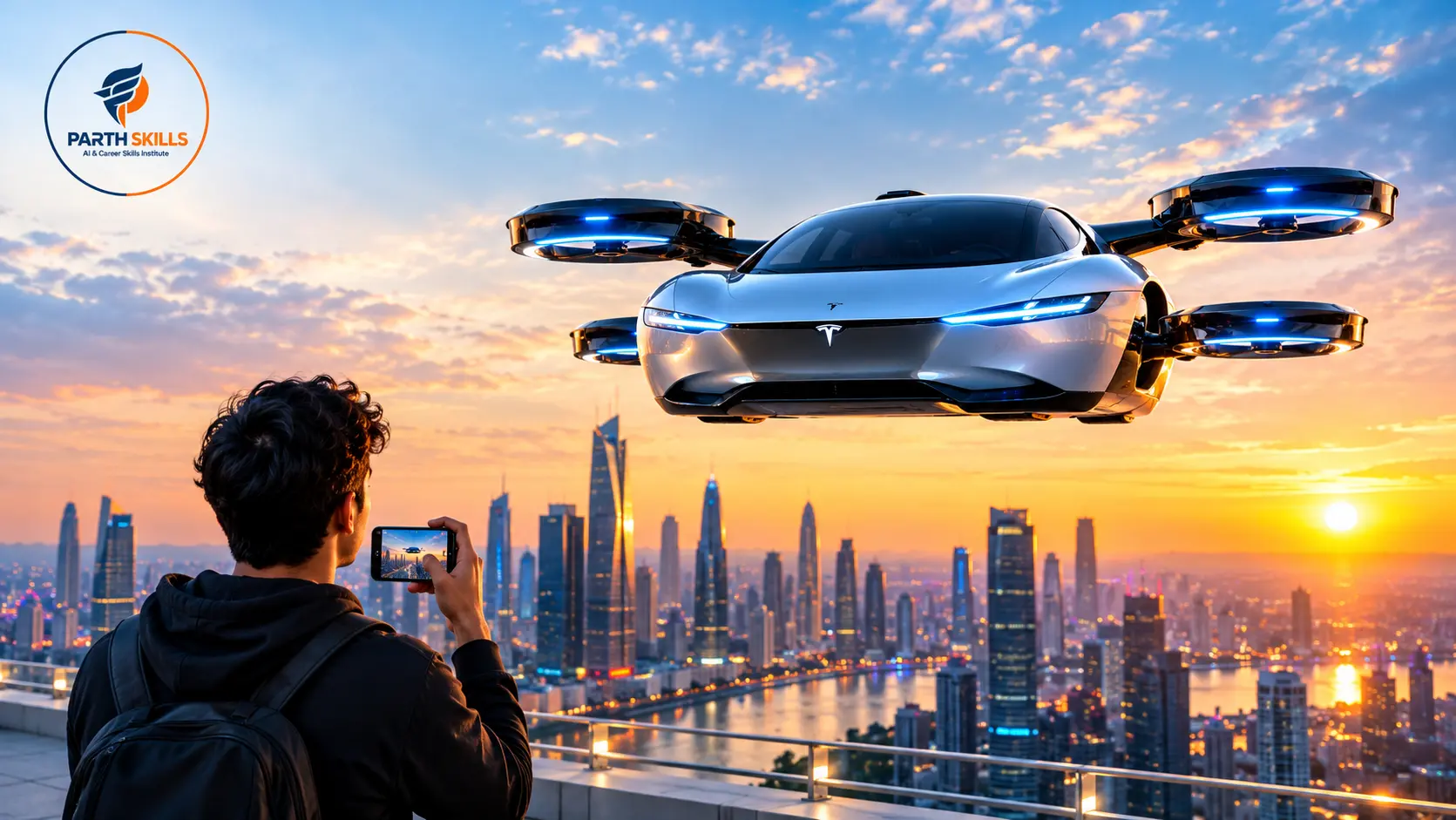
Want to create a realistic Tesla flying car AI video using your own photo? You do not need a complicated 30-second movie or dozens of prompts. With a good reference photo and a well-structured AI video prompt, you can create a short cinematic flying-car Reel for Instagram, YouTube Shorts or other social platforms.
In this guide, we are sharing two ready-to-use prompts. The first creates a quick 10-second flying-car video, while the second creates a more complete 20-second cinematic story showing you entering the car, reaching traffic, activating flight mode, flying over the traffic and landing again.
You can use these prompts with Google Flow, Google Veo or another AI video tool that supports reference images or image-to-video generation. If your selected model supports multiple reference images, you can upload both your own photo and a car photo for better consistency.
Quick Answer: Upload a clear photo of yourself, choose an image-to-video or reference-image video workflow, paste one of the prompts below, select a vertical 9:16 format if you are creating a Reel, and generate the clip. For a better result, keep the same person and car references across every scene.
What Do You Need to Create the Flying Car AI Video?
You only need a few things before starting:
- A clear photo of yourself
- An optional reference photo of the car you want to use
- An AI video generator that supports image or reference-based video generation
- One of the copy-paste prompts provided below
- A video editor for final music, text, cuts and branding
If you are creating an Instagram Reel or YouTube Short, we recommend using a 9:16 vertical format. A clear portrait or three-quarter photo usually works better than a blurry, distant or heavily edited photograph.
If you are new to AI video tools, you can also check our guide to the best free AI video generators for YouTube Shorts before choosing a platform.
Tesla Flying Car AI Video Prompt #1: 10-Second Video With Your Own Photo
Best for: Instagram Reels, YouTube Shorts, viral AI clips and quick personal flying-car videos.
This version is designed for users who mainly want the exciting part of the video: you are inside a futuristic electric car, traffic is blocked, you activate flight mode and the vehicle rises above the road.
What Photo Should You Upload?
Upload one clear photograph of yourself. Your face, hairstyle and upper body should be clearly visible. If your AI tool allows multiple references, you can also upload a separate image of the car you want to use.
Copy-Paste 10-Second Flying Car Prompt
Use the uploaded photo as the exact identity reference for the main person.

Create an ultra-realistic cinematic 10-second vertical 9:16 video.

IDENTITY LOCK:
Keep the person's face, hairstyle, skin tone, age, facial features, body proportions, clothing and overall identity consistent with the uploaded reference image throughout the entire video.

Do not redesign or replace the person's face.

SCENE:

A futuristic pearl-white premium electric sports car is stopped in heavy Indian city traffic during warm late-afternoon daylight.

The person from the uploaded reference photo is sitting naturally in the driver's seat.

Start with a cinematic interior medium close-up showing the same person looking through the windshield at the traffic ahead.

The driver looks at the congestion, gives a subtle confident smile and presses a futuristic illuminated button on the centre console.

Cut smoothly to a low exterior front three-quarter camera angle.

Compact futuristic blue-white propulsion units underneath the car activate.

Show subtle heat distortion and realistic downward air pressure moving small amounts of dust across the road.

The car initially lifts only a few centimetres from the road.

Pause briefly.

Then the vehicle slowly rises approximately 1.5 metres above the traffic.

Keep the vehicle stable and level.

The same car begins moving smoothly forward above stopped cars, motorcycles and auto-rickshaws.

End with a dramatic cinematic tracking shot of the flying car passing above the traffic.

VISUAL STYLE:

Ultra-photorealistic live-action footage.

Premium automotive commercial.

Realistic Indian metropolitan road environment.

Warm natural sunlight.

Professional cinematic camera movement.

Believable vehicle weight and physics.

Natural skin texture.

Realistic reflections and shadows.

Cinematic depth of field.

Subtle realistic motion blur.

IMPORTANT IDENTITY RULES:

Keep the uploaded person's face clearly recognizable.

Use exactly the same person throughout the video.

Do not change hairstyle, clothing, skin tone or facial structure.

VEHICLE RULES:

Keep exactly the same car throughout the complete shot.

All four wheels must remain correctly attached.

Keep the same headlights, windows, roof, doors, wheels and body proportions.

NEGATIVE CONSTRAINTS:

No face morphing.

No distorted face.

No duplicate person.

No extra arms or fingers.

No changing clothes.

No disappearing wheels.

No car morphing.

No vehicle redesign.

No giant rocket flames.

No explosion.

No cartoon appearance.

No unrealistic spinning.

No text.

No subtitles.

No watermark.

The finished video should look like professionally recorded real-world prototype test footage rather than fantasy animation.
What Should the Final 10-Second Video Look Like?
The final clip should feel simple and realistic. The viewer first recognises you inside the vehicle, sees the traffic problem and then gets the visual payoff when the car rises and moves over the traffic.
Do not try to include too many different camera angles in ten seconds. Keeping the action simple generally produces better facial consistency, better vehicle geometry and more believable movement.
Tesla Flying Car AI Video Prompt #2: 20-Second Complete Cinematic Video
Best for: A complete AI Reel with a beginning, problem, flying-car moment and ending.
If you want something more impressive than a single flying shot, use this version. It gives the AI a complete story:
You approach the car → enter → drive → reach traffic → activate flight mode → fly above traffic → land → drive away.
Recommended Reference Images
For this version, the best setup is to upload two references if your selected AI video workflow supports them:
- Reference Image 1: Your own photograph
- Reference Image 2: The car you want to appear in the video
This is particularly useful because the user does not need to use exactly the same white sports car shown in our example. You can upload another futuristic electric car reference and instruct the AI to preserve that vehicle.
Copy-Paste 20-Second Flying Car Prompt
REFERENCE IMAGE 1 = Main person's identity.
REFERENCE IMAGE 2 = Vehicle design, if supplied.

Use Reference Image 1 as the exact identity of the main character.

If Reference Image 2 is supplied, use it as the exact vehicle reference and preserve its overall design throughout the video.

Create an ultra-photorealistic cinematic 20-second vertical 9:16 AI video.

IDENTITY LOCK:

The person from Reference Image 1 must remain clearly recognizable throughout the entire sequence.

Preserve the same face, hairstyle, facial features, skin tone, age, body proportions and clothing.

Do not regenerate a different-looking person between shots.

0-4 SECONDS — APPROACH THE CAR:

Show the person from the uploaded reference photograph walking confidently toward a futuristic premium electric sports coupe parked on a realistic tree-lined Indian metropolitan road.

Use a cinematic low front three-quarter automotive camera angle.

The person reaches the driver's side, naturally opens the door and begins entering the vehicle.

Warm late-afternoon sunlight filters through roadside trees.

Maintain the person's exact identity.

4-8 SECONDS — DRIVE THE CAR:

Show the same person naturally seated inside the premium futuristic car interior.

The driver places their hands naturally on the steering wheel and begins driving.

Transition smoothly to an exterior low front three-quarter tracking shot.

The same car travels along the Indian city road.

The wheels rotate naturally.

Reflections move realistically across the vehicle.

The car must remain completely normal and road-based at this point.

8-11 SECONDS — TRAFFIC JAM:

The vehicle reaches heavy Indian metropolitan traffic.

Show realistic cars, motorcycles, auto-rickshaws and a city bus moving slowly ahead.

Cut to an interior medium close-up.

The same driver looks through the windshield at the traffic congestion.

The driver shows a subtle confident expression and looks toward the centre console.

The driver presses a discreet illuminated futuristic flight-mode button.

11-16 SECONDS — ACTIVATE AND FLY:

Cut to a low exterior camera angle.

Compact blue-white propulsion units underneath the same car activate.

Show realistic heat distortion.

Downward airflow gently pushes dust across the asphalt.

The suspension unloads naturally.

The vehicle initially rises approximately 15 to 20 centimetres.

Pause briefly.

Then it slowly rises to approximately two metres above the road.

Keep the car completely level.

All four wheels remain correctly attached.

The same vehicle begins moving forward above the stopped traffic.

Use a cinematic low side-tracking shot as it passes above cars and auto-rickshaws.

Maintain believable inertia, weight and realistic movement.

16-20 SECONDS — LAND AND DRIVE AWAY:

The vehicle clears the traffic congestion and reaches an open stretch of road.

The car gradually reduces altitude.

Blue-white propulsion intensity decreases slowly.

All four tyres touch the asphalt naturally.

The suspension compresses slightly as the vehicle's weight returns to the road.

The propulsion system turns off.

The car immediately transitions back to normal driving.

Finish with a cinematic low rear three-quarter shot showing the same car accelerating smoothly away beneath green roadside trees.

VISUAL STYLE:

Ultra-photorealistic live-action automotive commercial.

Professional cinema-camera appearance.

Realistic Indian metropolitan environment.

Warm late-afternoon daylight.

Natural realistic skin.

Realistic glass and vehicle reflections.

Physically believable shadows.

Smooth camera movement.

Cinematic depth of field.

Natural motion blur.

Believable vehicle weight, suspension and physics.

STRICT PERSON CONSISTENCY:

Keep the uploaded person's exact identity.

Do not change:

face,
hairstyle,
skin tone,
age,
clothing,
body proportions,
or facial characteristics.

STRICT VEHICLE CONSISTENCY:

Keep exactly the same vehicle throughout the complete video.

Do not change:

wheels,
headlights,
doors,
windows,
roof,
body shape,
paint,
or vehicle proportions.

NEGATIVE CONSTRAINTS:

No face morphing.

No facial distortion.

No duplicate person.

No extra limbs.

No deformed hands.

No disappearing wheels.

No changing vehicle.

No vehicle transformation.

No giant flames.

No explosions.

No unrealistic aerial flips.

No teleportation.

No cartoon or animation appearance.

No generated text.

No subtitles.

No watermark.

The final result should resemble authentic prototype-testing footage captured professionally rather than a fantasy science-fiction animation.
How to Use These Flying Car Prompts
The exact interface will depend on the AI video tool and model you use, but the workflow is straightforward.
- Prepare your photo: Select a clear, high-quality image of yourself.
- Upload the photo: Add it as the main person or character reference.
- Add a car reference: If the tool allows another reference image, upload the car you want to use.
- Choose video generation: Select an image-to-video or reference-based video workflow.
- Select 9:16: Use vertical orientation for Instagram Reels and YouTube Shorts.
- Paste the prompt: Copy either the 10-second or 20-second prompt above.
- Generate: Review the output before accepting it.
- Regenerate weak scenes: Pay close attention to the face, hands, wheels and car design.
- Edit the final clip: Add music, sound effects, titles, branding and your AI disclosure during editing.
If you want to compare different video-generation tools before starting, read our 2026 guide to free AI video generators.
How to Use Your Own Photo in the AI Video
The quality of your reference photograph can significantly affect the final output. AI cannot reliably preserve details that are unclear in the original image.
For best results, use a photograph where:
- Your face is clearly visible
- The image is sharp and properly exposed
- Your hair is clearly visible
- Your face is not covered by sunglasses, hands or another object unless you want those details preserved
- The photograph is not excessively filtered
- Your body position looks natural
If you want to appear inside the vehicle for a longer period, another useful technique is to first create a high-quality still image showing yourself naturally seated in the driver’s seat. Once you approve the face, hands, steering wheel and cabin, use that image as the starting reference for video generation.
Want to Use Your Own Car Photo?
Yes. You can personalise the same prompt using a vehicle reference.
Instead of asking the AI to invent the car every time, upload an image of your preferred car and add this instruction at the beginning of the prompt:
REFERENCE IMAGE 1 = Person identity.
REFERENCE IMAGE 2 = Vehicle design.

Use Reference Image 1 as the exact main character and Reference Image 2 as the exact vehicle.

Maintain both references consistently throughout the entire video.

Do not redesign the person's face or the vehicle between shots.
This technique also works for other car concepts, not only flying-car videos.
For more automotive prompt ideas, see our Top 10 Mercedes Car Driving AI Video Prompts.
Why Does the Face Change in AI Videos?
One of the most common problems in AI-generated video is identity drift. Your face may look accurate in the first few seconds and slightly different later.
This usually happens because the model has to generate many new frames while also handling movement, camera changes, lighting, vehicle motion and background activity.
To reduce face changes:
- Use one strong reference photograph
- Keep the first clip relatively simple
- Avoid too many rapid camera-angle changes
- Repeat an explicit identity-lock instruction
- Do not change clothing descriptions between scenes
- Avoid extreme facial expressions
- Keep important face shots relatively close and well lit
- Regenerate a scene if identity consistency becomes poor
How to Stop the AI Car From Changing
Vehicle consistency is another major challenge. AI may change the headlights, wheels, windows, body length or roof shape between shots.
For better consistency, upload a clear vehicle reference whenever your chosen tool supports it and include instructions such as:
Keep exactly the same vehicle throughout the complete video.

Preserve the original wheel design, headlights, windows, roof, doors, mirrors, body proportions and paint.

Never redesign, morph or replace the vehicle.
How to Make the Flying Effect Look More Realistic
A common mistake is asking the AI to make the car instantly jump into the sky. That often creates an unrealistic result.
A better sequence is:
System activation → air pressure → suspension unloads → small lift → brief hover → slow ascent → forward movement → gradual descent → tyre contact.
This gives the AI a physical sequence to follow and generally looks more convincing than a single instruction saying, “Make the car fly.”
Best Prompt Formula for AI Car Videos
You can use the same structure to create many other automotive AI videos.
Reference + Subject + Action + Environment + Camera + Lighting + Physics + Continuity + Negative Constraints + End Frame
For example:
A futuristic white electric sports car slowly rises above an Indian city road while a low side-tracking camera follows it. Warm afternoon sunlight reflects naturally across the body. Downward propulsion moves dust beneath the vehicle. Keep the same wheels, headlights, windows and body shape throughout the shot.
The clearer your instructions are about movement and continuity, the less the AI has to invent.
Should You Create the Entire Video in One Generation?
For a simple 10-second concept, one generation can work well.
For a more complicated story, creating shorter connected clips can provide more control. For example, you can separately generate the driving scene, traffic scene, take-off scene and flying scene, then combine the best results during editing.
This also makes it easier to regenerate only the weak part instead of recreating the entire video.
How to Edit Your Flying Car AI Video
The generated video should be treated as raw creative material rather than automatically being considered the finished Reel.
After generation, check:
- Face consistency
- Hands and fingers
- Car wheels
- Vehicle shape
- Road movement
- Reflections
- Landing physics
- Background vehicles
Then add your music, sound effects, captions, transitions and branding in your preferred video editor.
For a flying-car sequence, sound can make a major difference. Try combining normal traffic ambience with a subtle electric system activation, compressed-air effect, low propulsion hum and realistic landing sound.
Should You Label the Video as AI-Generated?
Yes, especially when you are creating highly realistic footage inspired by a real company, product or trending technology.
A simple label such as “AI Concept” or “AI-Generated Concept Visual” helps viewers understand that the footage is a creative AI-generated demonstration rather than original footage from the manufacturer.
This is particularly important when the video looks realistic enough that someone could mistake it for a genuine product demonstration.
Learn AI Video Creation Beyond Copy-Paste Prompts
A good prompt can help you create one video. However, consistently creating strong AI content requires more than copying prompts.
A complete AI video workflow can include idea development, hooks, scripts, storyboards, reference images, text-to-video, image-to-video, camera direction, continuity, editing, sound design, captions, thumbnails and final platform optimisation.
If you want to learn this process practically, explore the AI Video Making, Editing & Content Creation Course in Jaipur at Parth Skills.
The course focuses on taking an idea from concept to finished content rather than learning isolated AI tool tricks.
More AI Video Prompts and Guides
If you enjoyed this flying-car prompt, continue with these Parth Skills resources:
- Top 10 Mercedes Car Driving AI Video Editing Prompts – Create personal driving, highway, mountain, night and cinematic car videos.
- Best Free AI Video Generators for YouTube Shorts – Compare AI video tools for short-form content.
- AI Video Making, Editing & Content Creation Course – Learn AI visuals, Reels, Shorts, scripts, editing, voiceovers and practical content workflows.
- AI SEO, AEO & GEO Course in Jaipur – Learn how modern content connects with traditional search and AI-generated search experiences.
Final Takeaway
You do not need a huge prompt library to create a strong flying-car AI video. Start with a clear photograph, give the AI a simple story and provide precise instructions about identity, vehicle consistency, movement and physics.
If you want a quick Reel, start with the 10-second prompt. If you want a more cinematic result with a beginning and ending, use the 20-second prompt and add a separate car reference where your chosen tool supports it.
Most importantly, do not judge the workflow only by the first generation. Review the face, vehicle, hands, wheels and movement, regenerate weak sections and then use editing to turn the strongest AI-generated material into the final video.
Want to Learn AI Video Creation Practically?
Learn how to turn ideas into AI visuals, Reels, Shorts and finished content using practical projects and guided creative workflows.